How to play on Perfect Draw
From a fresh account to a full session: campaigns, characters, decks, rooms, battles, scenes, and the judge’s toolkit, in the order your table will meet them.
Create an account and sign in
An account stores your campaigns, characters, and decks so your whole table can play together from anywhere.
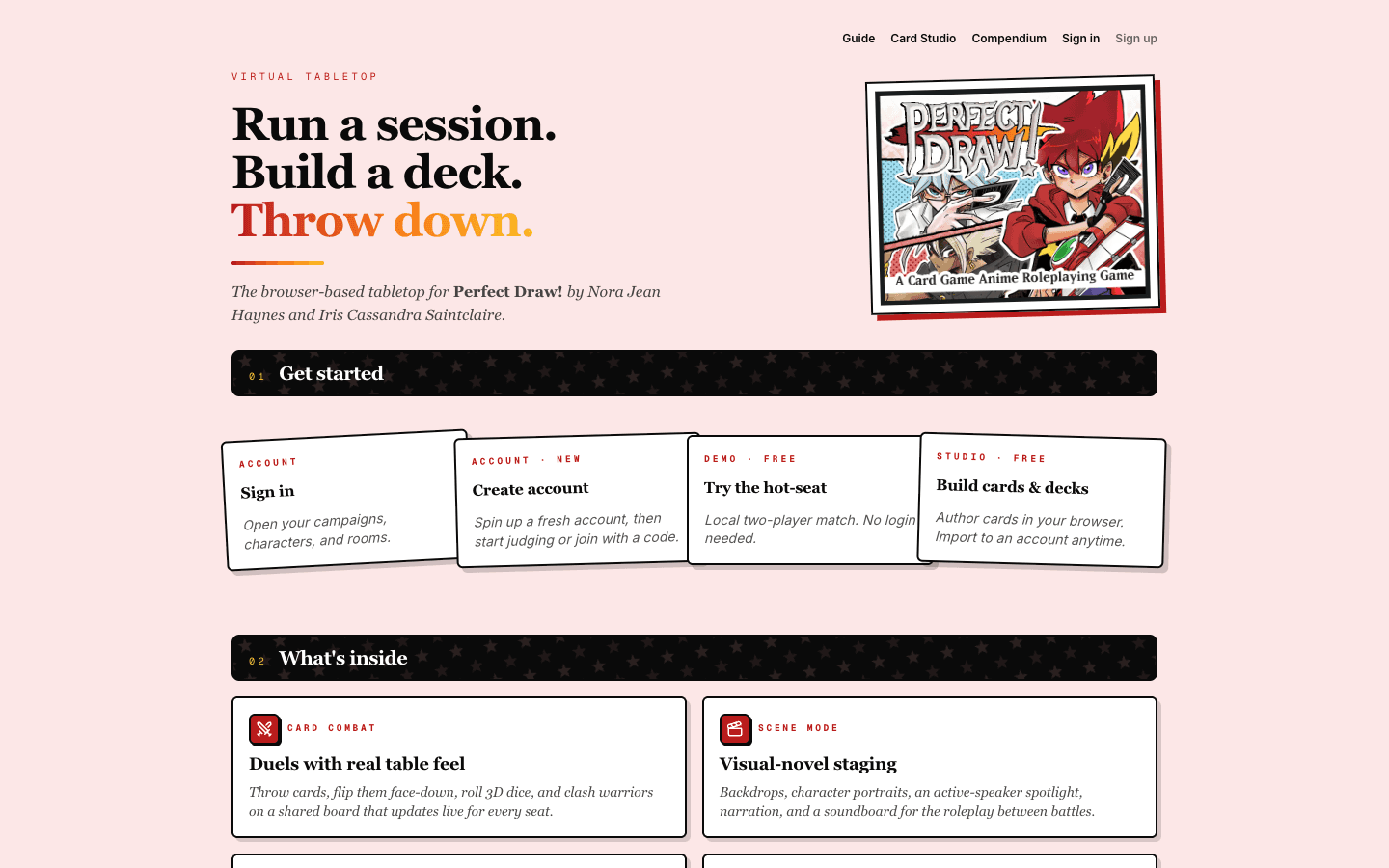
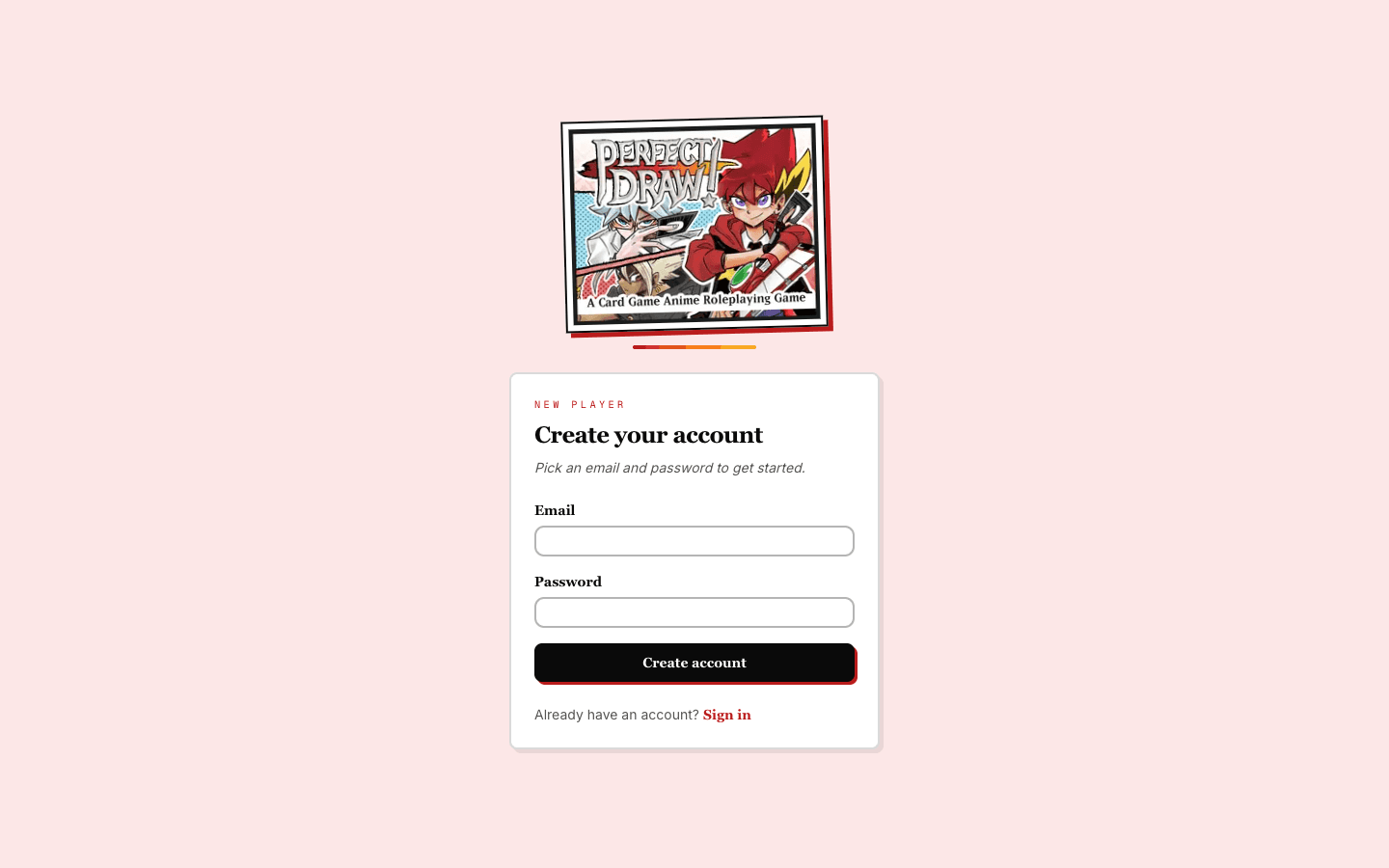
- From the home page, pick Create account in the Get started row (or the Sign up link in the top corner).
- Enter an email and password, then confirm.
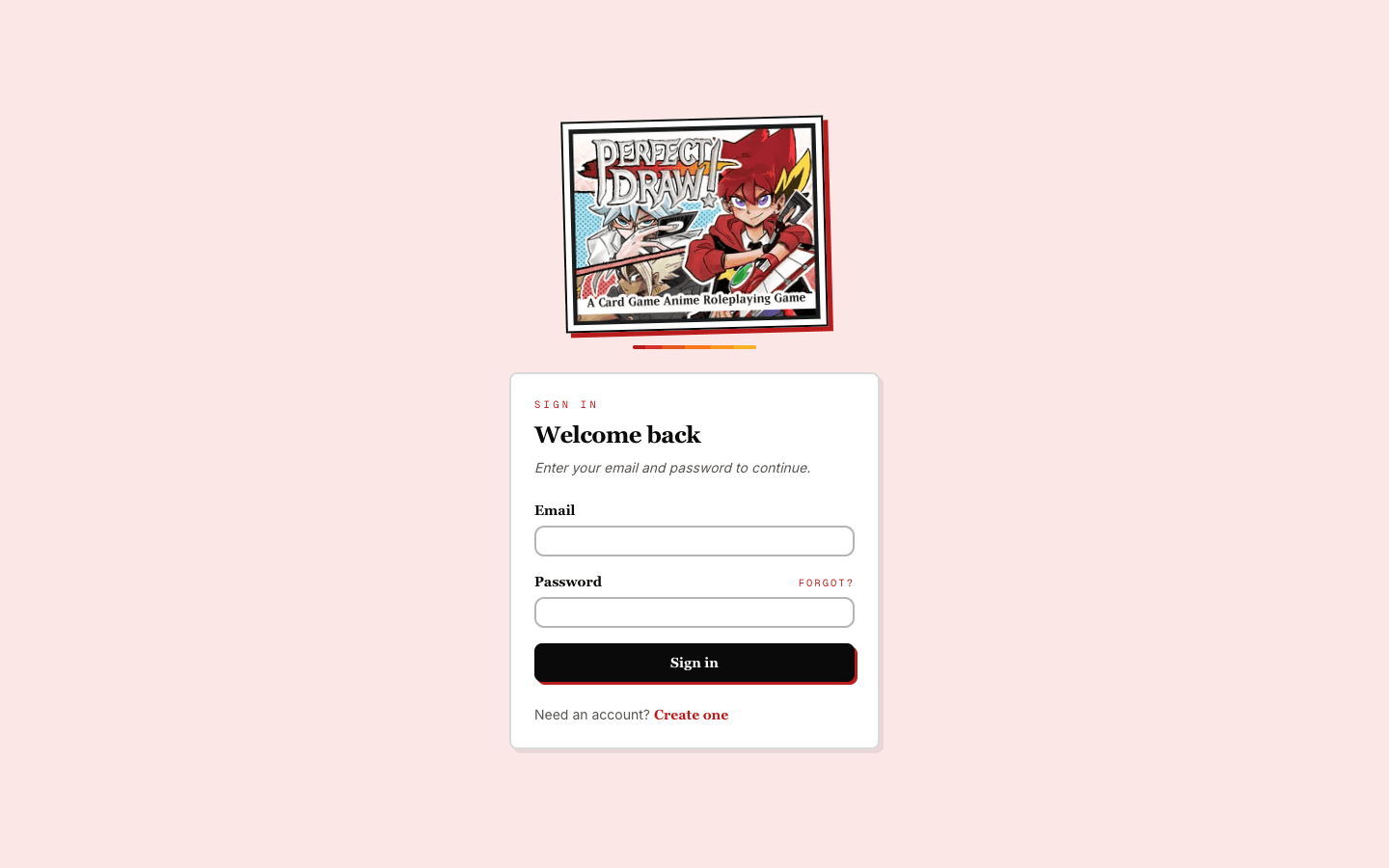
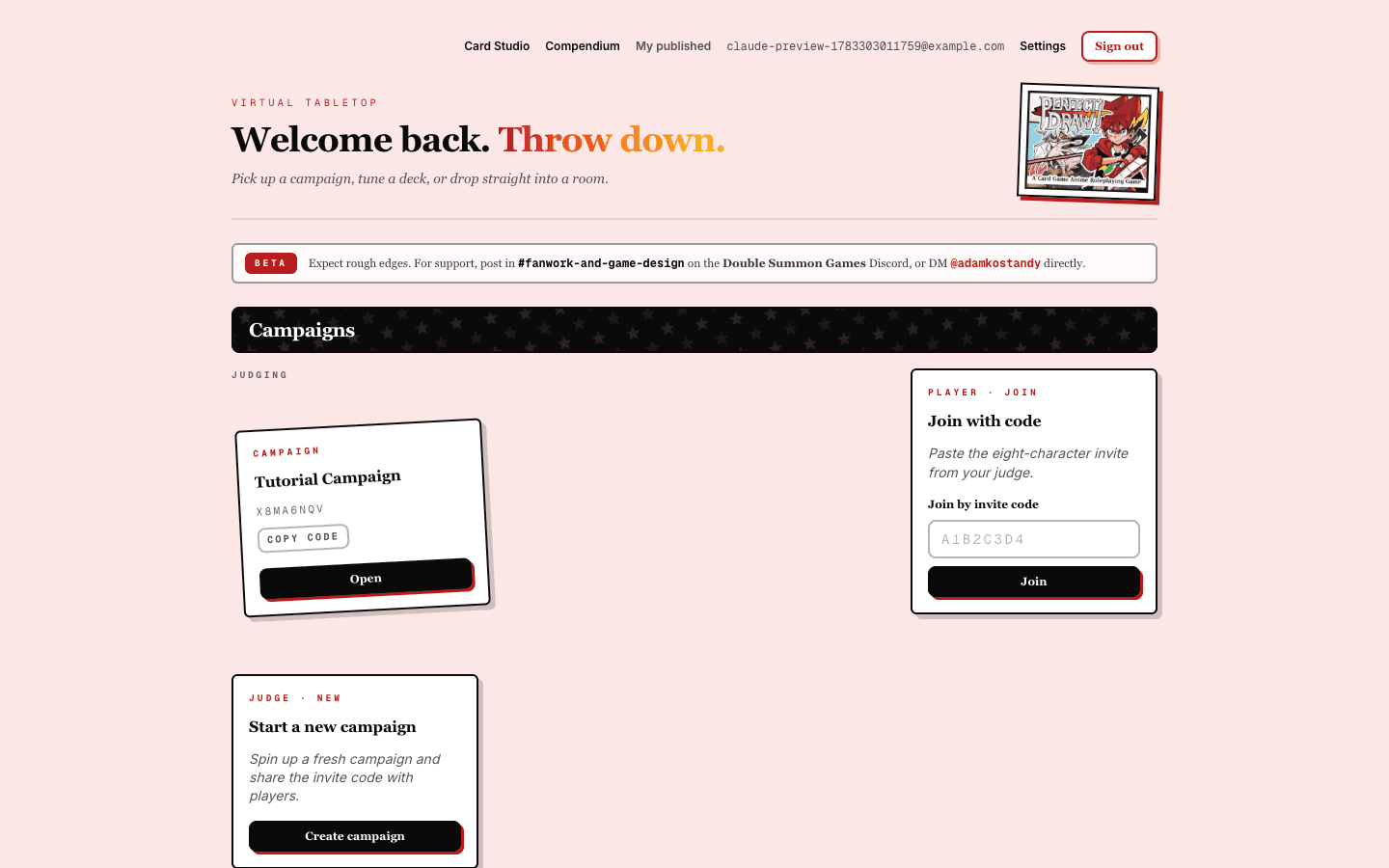
- Already registered? Use Sign in instead. After signing in you land on your dashboard, with campaigns on the left and characters below.
Create a campaign and invite your table
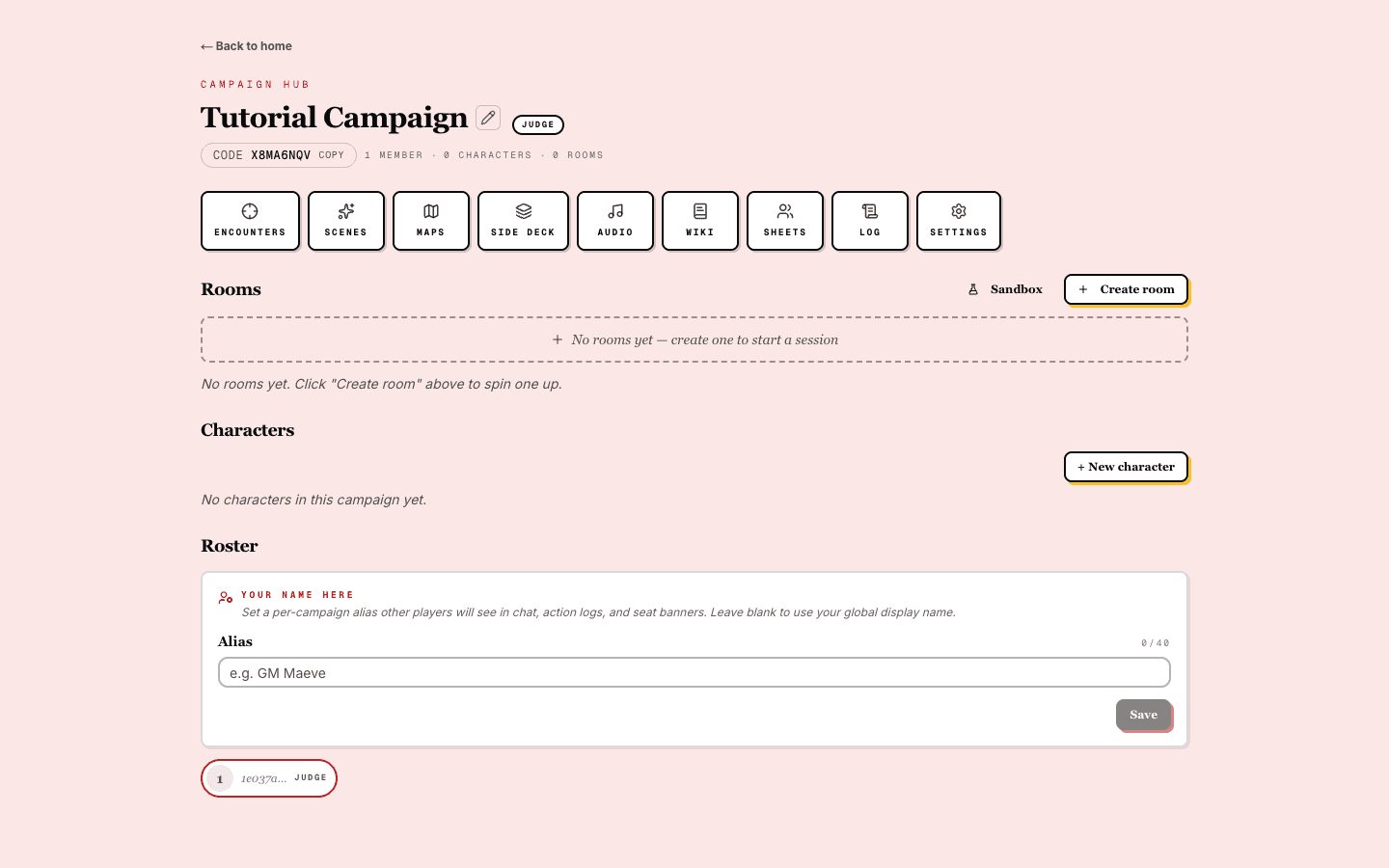
A campaign is the shared home for one group: its members, characters, rooms, wiki, and judge tools. The person who creates it becomes the judge.
- On your dashboard, find the Start a new campaign card, click Create campaign, and name it.
- You land in the campaign hub. The eight-character invite code sits right under the campaign name; the same code also shows on the campaign card back on your dashboard.
- Send that code to your players. They paste it into Join with code on their own dashboard to become members.
- Everyone who joins appears in the Roster section at the bottom of the hub.
Create a character
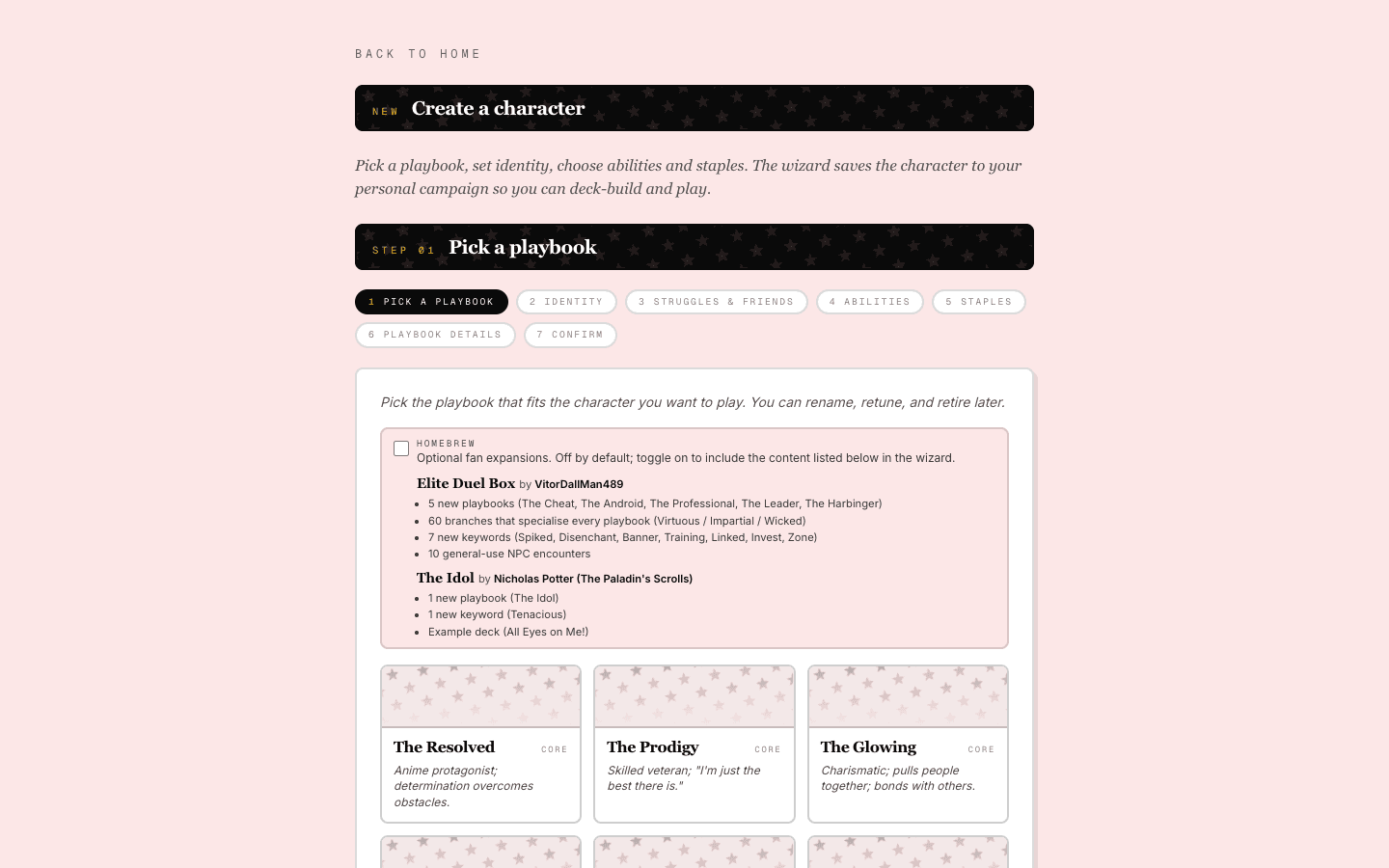
The character wizard walks you through a full Perfect Draw playbook: stats, identity, struggles, abilities, and your three starting staples.
- Click Create character on the dashboard Characters banner, or New character from a campaign hub.
- Step 1: pick a playbook. All fifteen official playbooks are here, plus optional homebrew expansions you can toggle on.
- Follow the remaining steps: identity, struggles and friends, abilities, and staples. The wizard fills in starting stats and required abilities for you.
- Confirm to save. The finished sheet is where you track baggage, experience, and advancement, and where your decks attach.
Build cards and decks
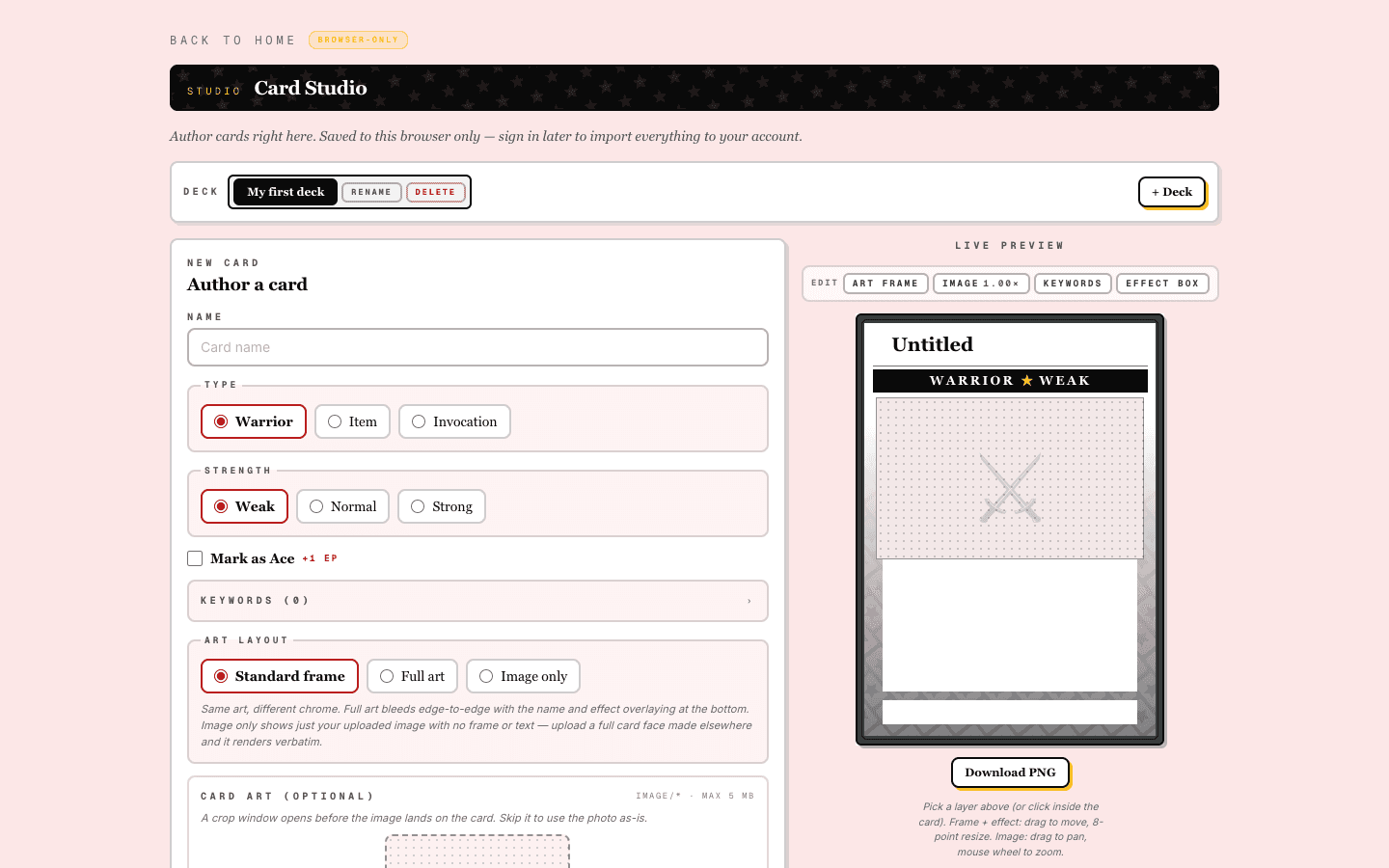
Perfect Draw is a game about cards you author yourself. The Card Studio works with or without an account and shows a live preview as you type.
- Open Card Studio from the top navigation. Without an account your work saves to this browser; sign in later to import it.
- Pick a type (warrior, item, or invocation), a strength tier, keywords, and optional art. The live preview on the right updates as you edit.
- In effect text, wrap a word in curly braces, like {Overwork}, to render it as a keyword chip. **double asterisks** bold a run and *single asterisks* italicize one.
- Group cards into decks with the deck strip at the top. On an account, decks attach to a character (open a character sheet and manage its decks) so the room lobby can find them.
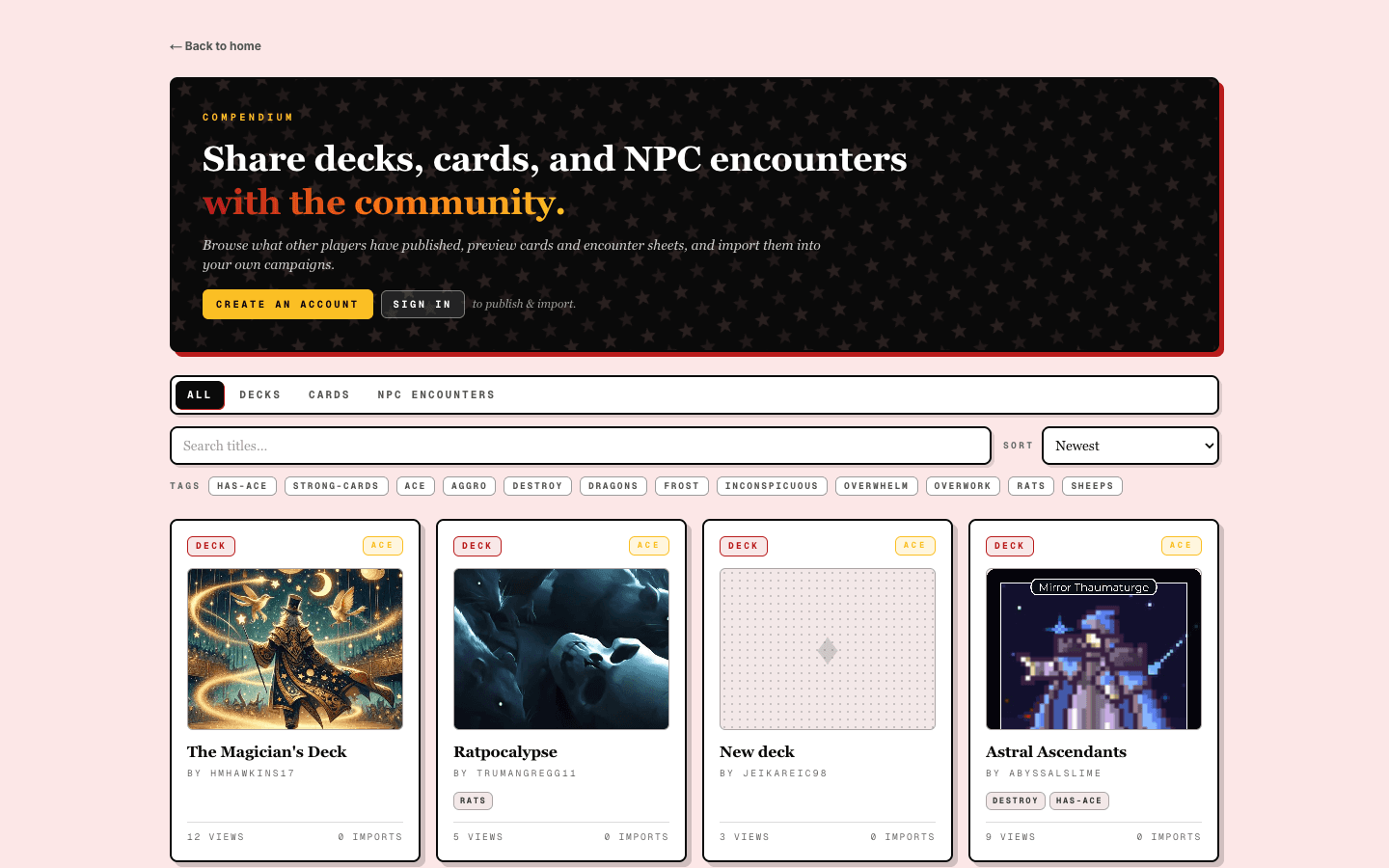
- Short on ideas? The Compendium hosts decks, cards, and NPC encounters published by other tables, ready to import into your own campaigns.
Rooms and the lobby
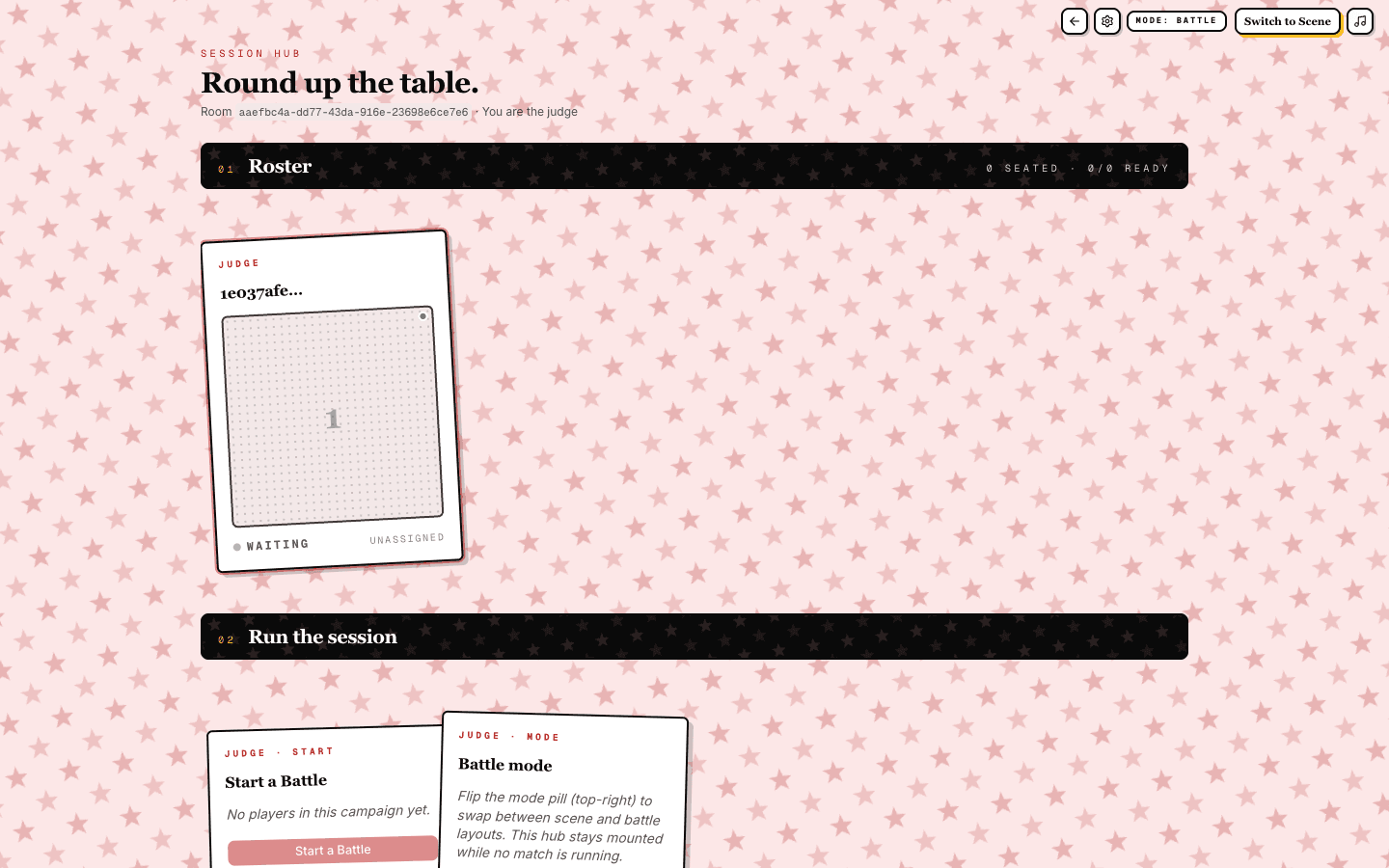
A room is one live session inside a campaign. The session hub is its lobby: seats around the top, judge controls below.
- As judge, click Create room on the campaign hub. Players open the same room from the call-out that appears on their campaign hub.
- Each player stages a loadout on their seat card: pick one of your characters and one of its decks.
- Ready up. The Roster banner tracks how many seats are staged and ready at a glance.
- When the table is set, the judge clicks Start a Battle, picks who is battling (with an optional Team Battle toggle), and the match begins. Anyone not ready is listed in the modal so nobody gets left behind.
The battle table
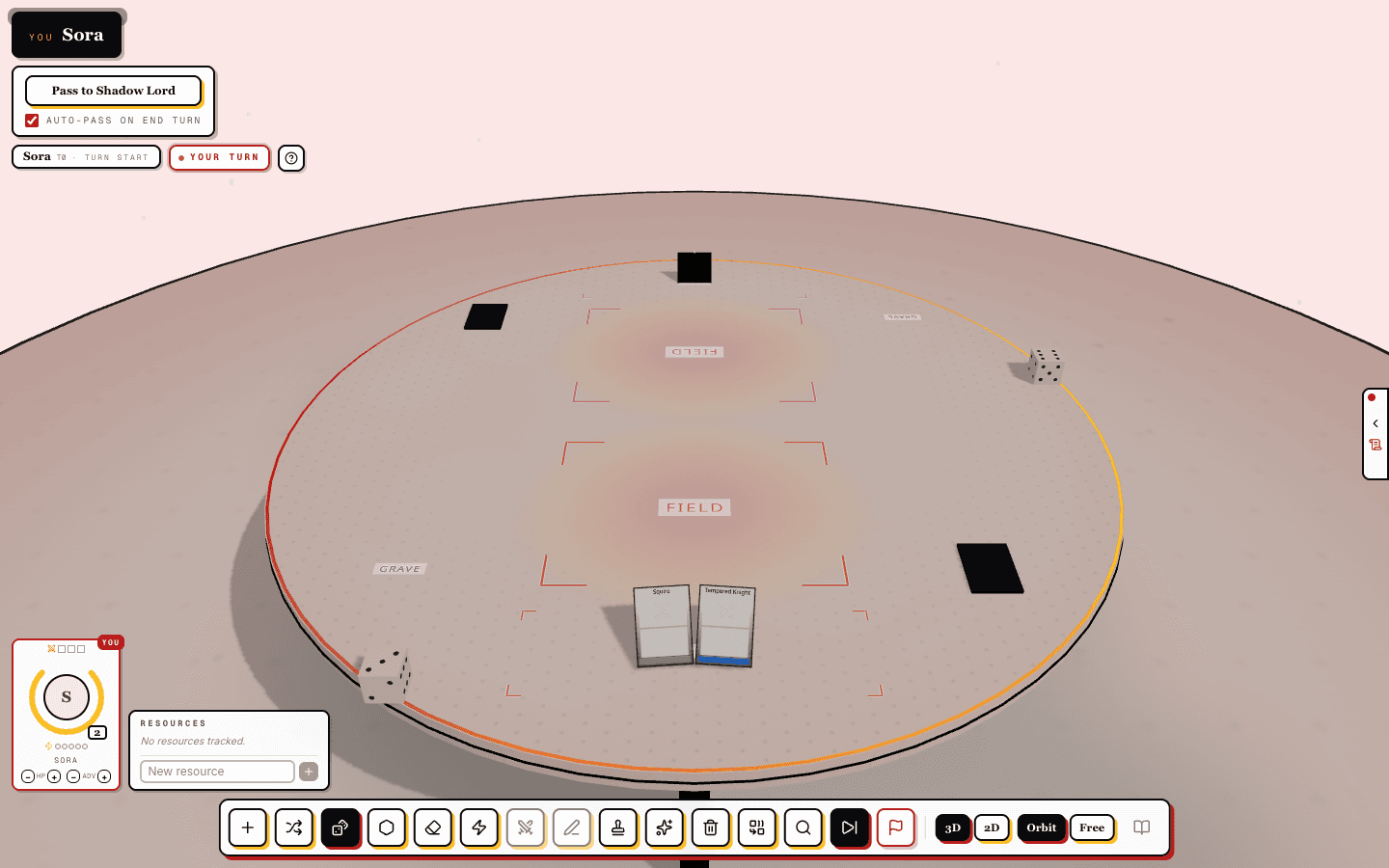
Battles play out on a shared 3D table. Your seat is always at the bottom, your hand floats in front of the camera, and every card move syncs live to the whole room.
- On your turn, draw with the draw action in the bottom toolbar. Your hand sits face-up at your edge of the table; opponents only see card backs.
- Play a card by dragging it from your hand onto your field zone. Drag to the graveyard to discard, or back to the deck to return it.
- Attack with a warrior on your field and pick the target: an opposing card, or the opponent directly when nothing blocks.
- Roll 3D dice from the toolbar for moves like Decide the Outcome of a Clash. The player orb in the corner tracks life, advantage, and tension; the +/- controls adjust them.
- Click end turn to pass play. In the hot-seat demo the seat banner hands control to the other side, automatically if auto-pass is on.
Scene mode for roleplay
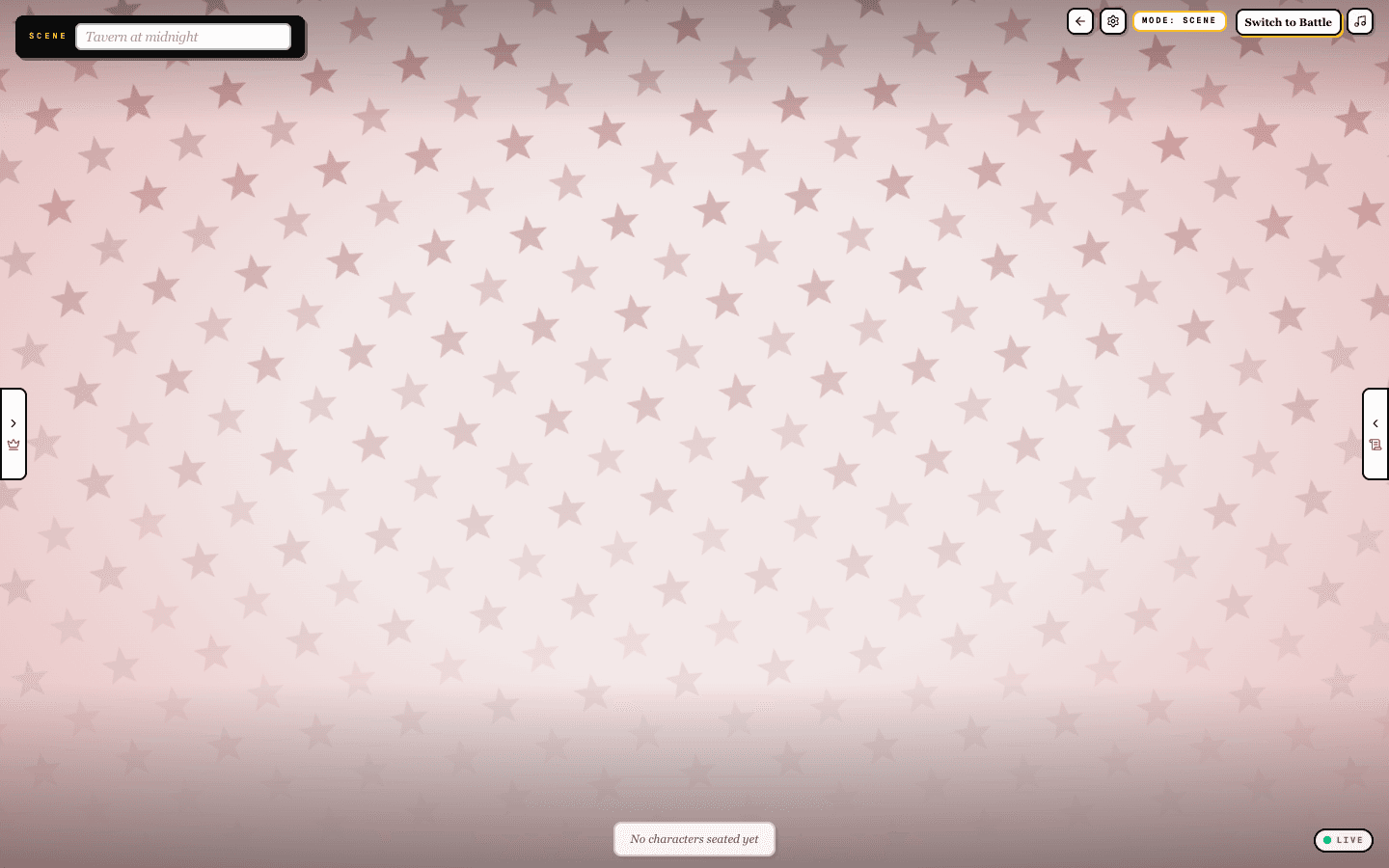
Between battles, a room flips into a visual-novel style stage for the narrative layer: backdrops, character portraits, and narration.
- In a room, use the mode pill in the top-right (or Switch to Scene) to flip between battle and scene layouts.
- The judge titles the scene and sets a backdrop; seated characters appear as portraits across the stage, with a spotlight on the active speaker.
- Narration, chat, and dice rolls for the narrative moves all happen from the side drawers, and the soundboard sets the mood.
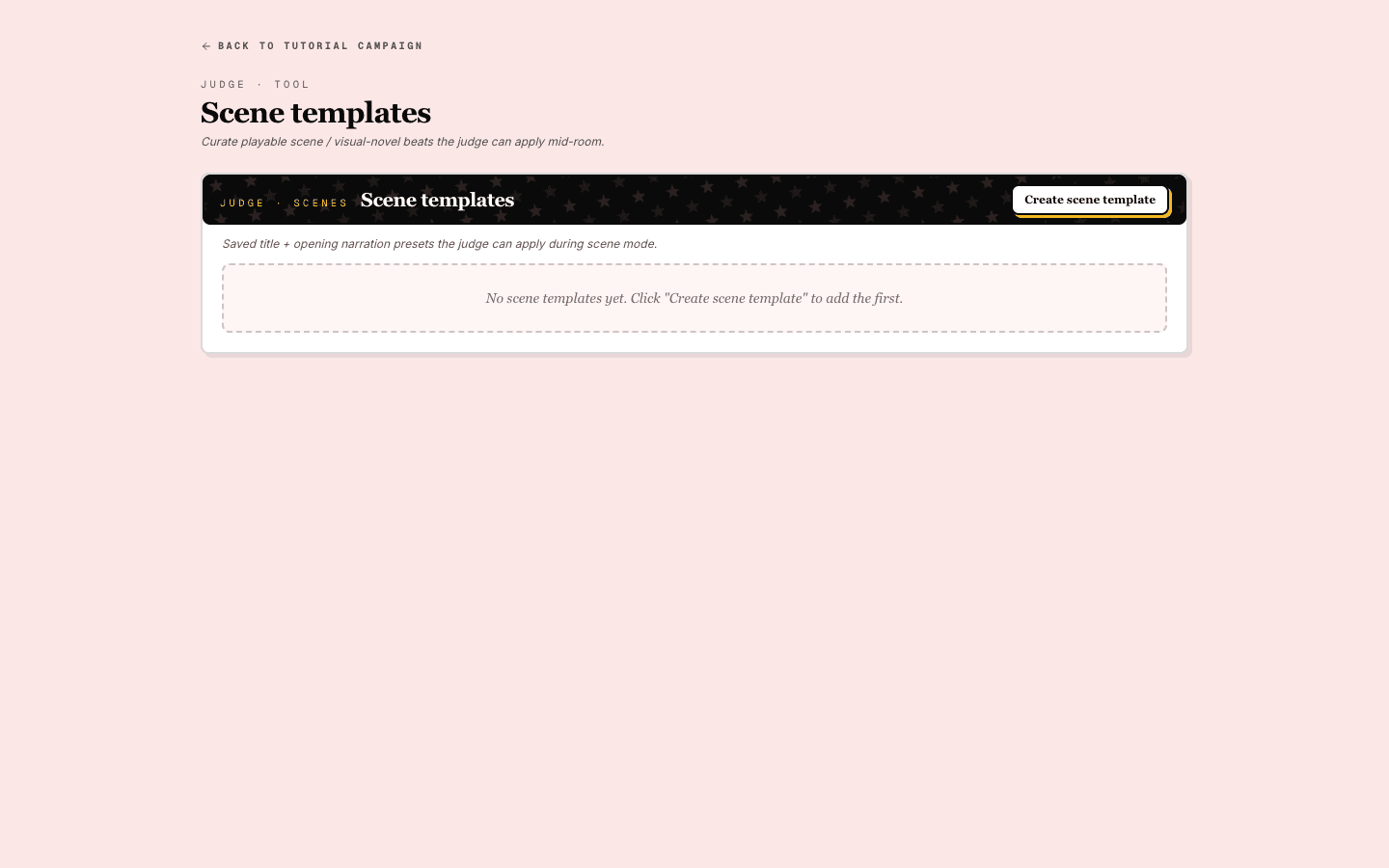
- Judges can save reusable openers under Scenes on the campaign hub and apply them mid-session.
Judge tools
The judge runs NPC opponents with a dedicated toolset instead of a deck: a gimmick, a plan to win, and prepared moves with tracked response and threat counters.
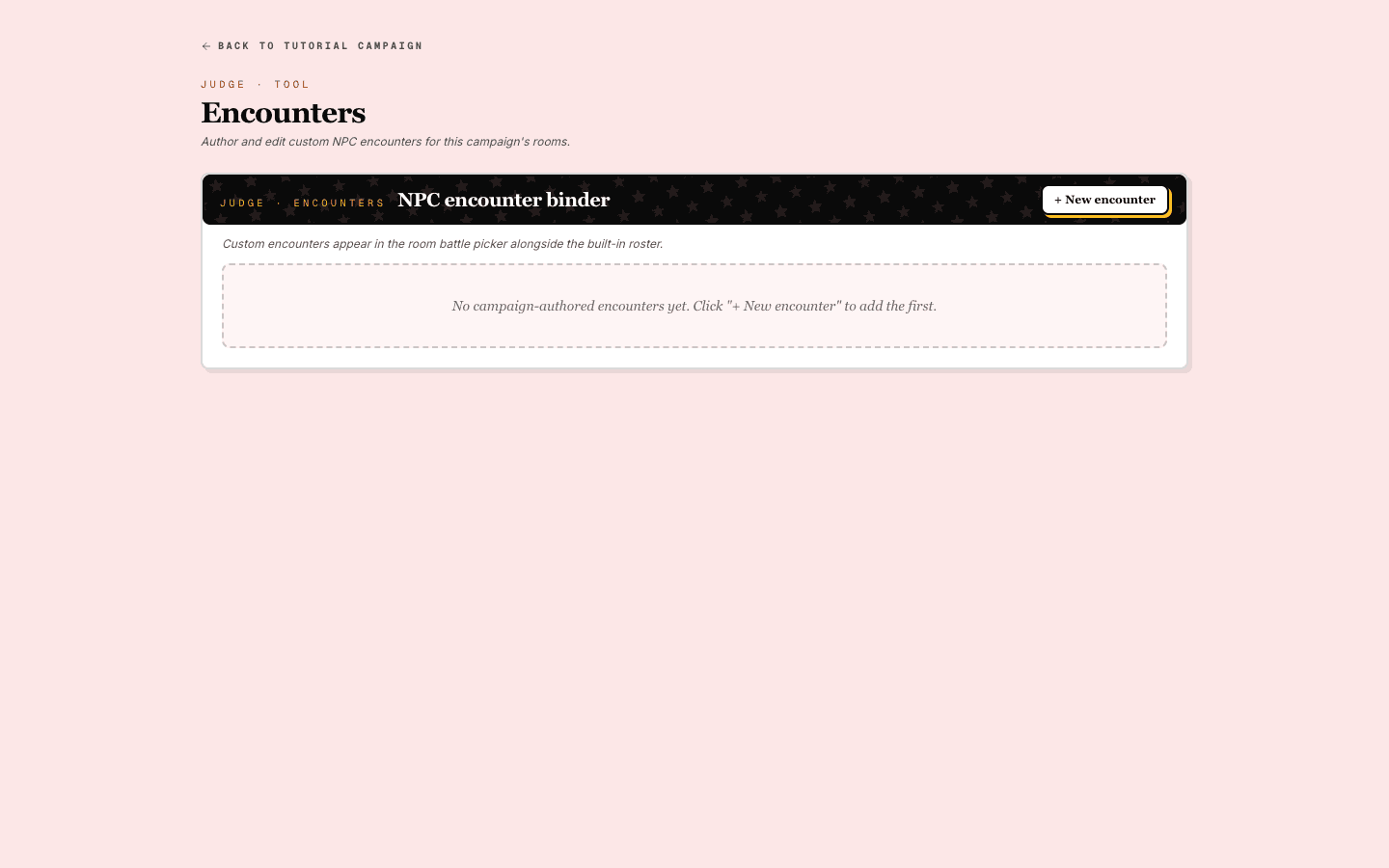
- Author NPC encounters under Encounters on the campaign hub: name the gimmick, then write plan-to-win, power, simple, response, and threat moves. Campaign encounters appear in the room battle picker alongside the built-in roster.
- When starting a battle, the judge picks the battlers seat by seat and can drop an NPC encounter in as the opposition.
- Mid-battle, the judge can manage battlers from the HUD: swap a player’s staged character or deck, spawn cards, and adjust life, advantage, or tension on any seat.
- Ending the battle returns the room to the session hub, ready for scene mode or the next match.
Try it without an account
Everything above works best with a table of friends, but you can feel out the game solo before signing up.
- The hot-seat demo is a full playable board with two local seats sharing one browser. Draw, play, attack, and roll dice exactly as in a real room.
- The Card Studio authors cards and decks saved to your browser only.
- When you create an account later, the dashboard offers to import your studio work, so nothing is lost.